
Introduction
This article explains the features on the OneTalk Mobile application including how to transfer a call and set call forwarding.
Requirements
- OneTalk Main number
- OneTalk mobile app:
- One Talk app is supported on the following operating systems:
- iOS 10.3 and above
- Android™ 5.0 and above
- One Talk app is supported on the following operating systems:
Steps for Transferring a Call
- Select the Transfer Button Highlighted Below
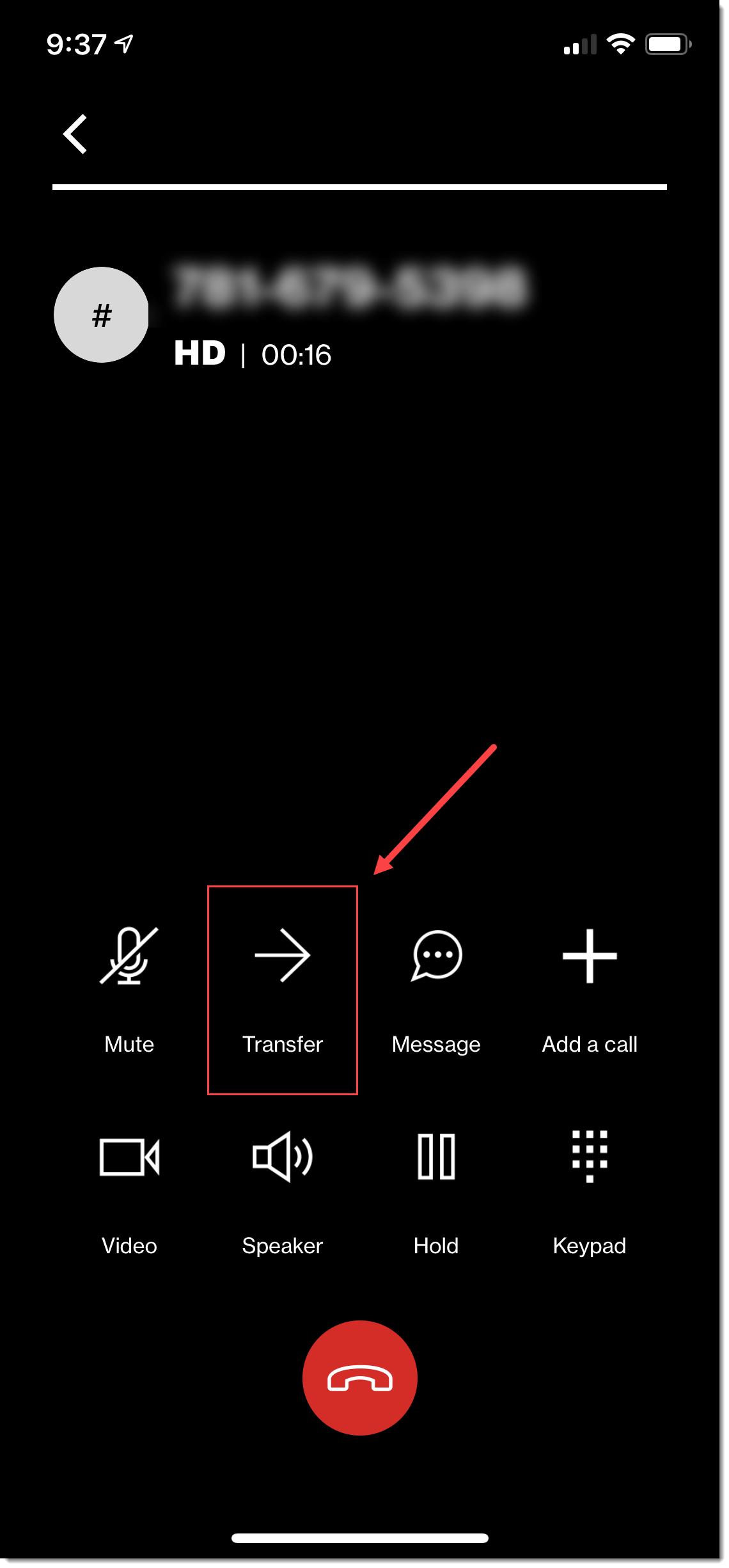
- Select Which Transfer you would like.
- Direct Transfer: Transfers the Call without prompting the receiving person
- Consultative Transfer: Talk to the recipient of the call before transferring the call
- Park Call: Parks the call on the recipients end for them to answer
- Select the Contact Icon to select the recipient to transfer to or enter the number.
- Contact list is pulled directly from your phone's contact list.
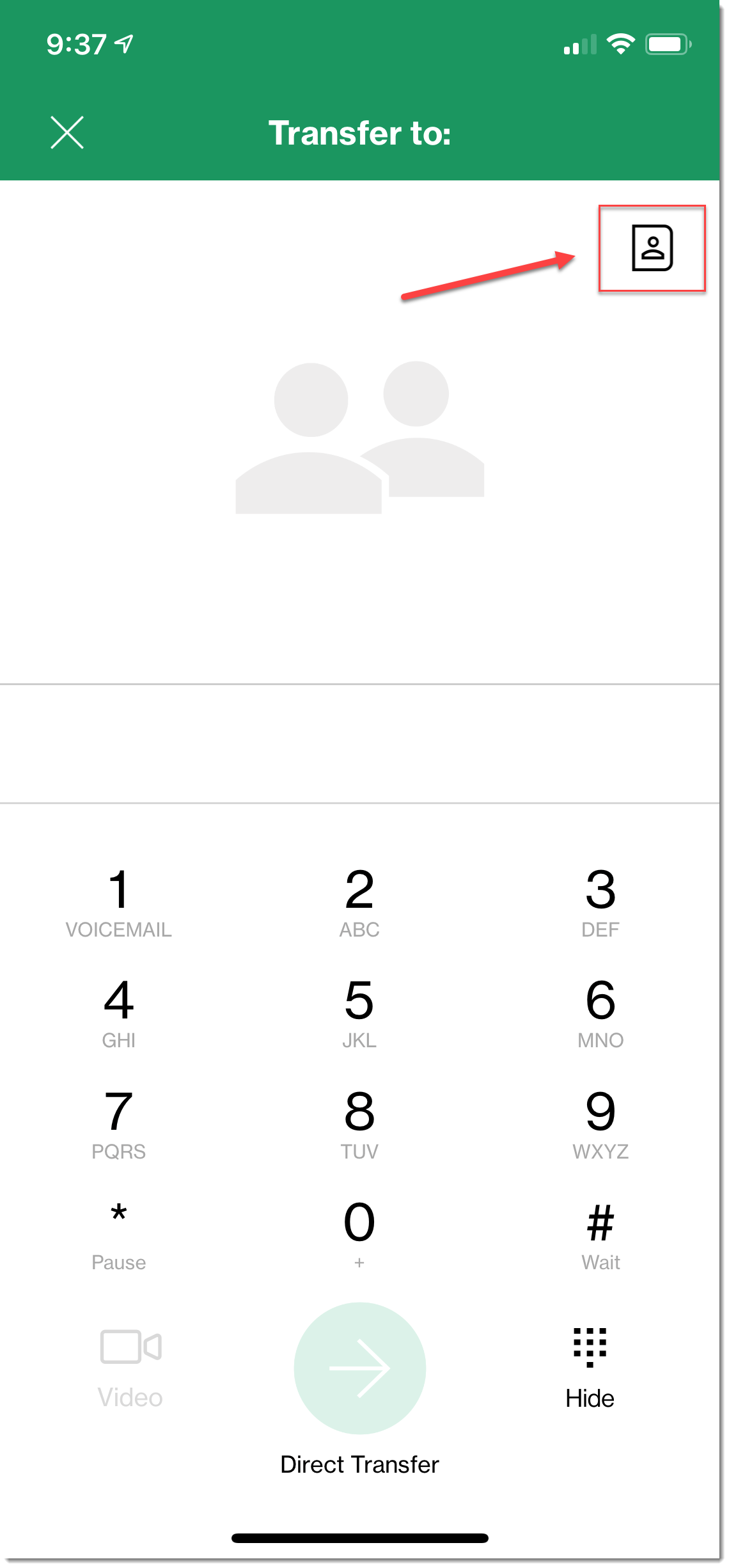
- Contact list is pulled directly from your phone's contact list.
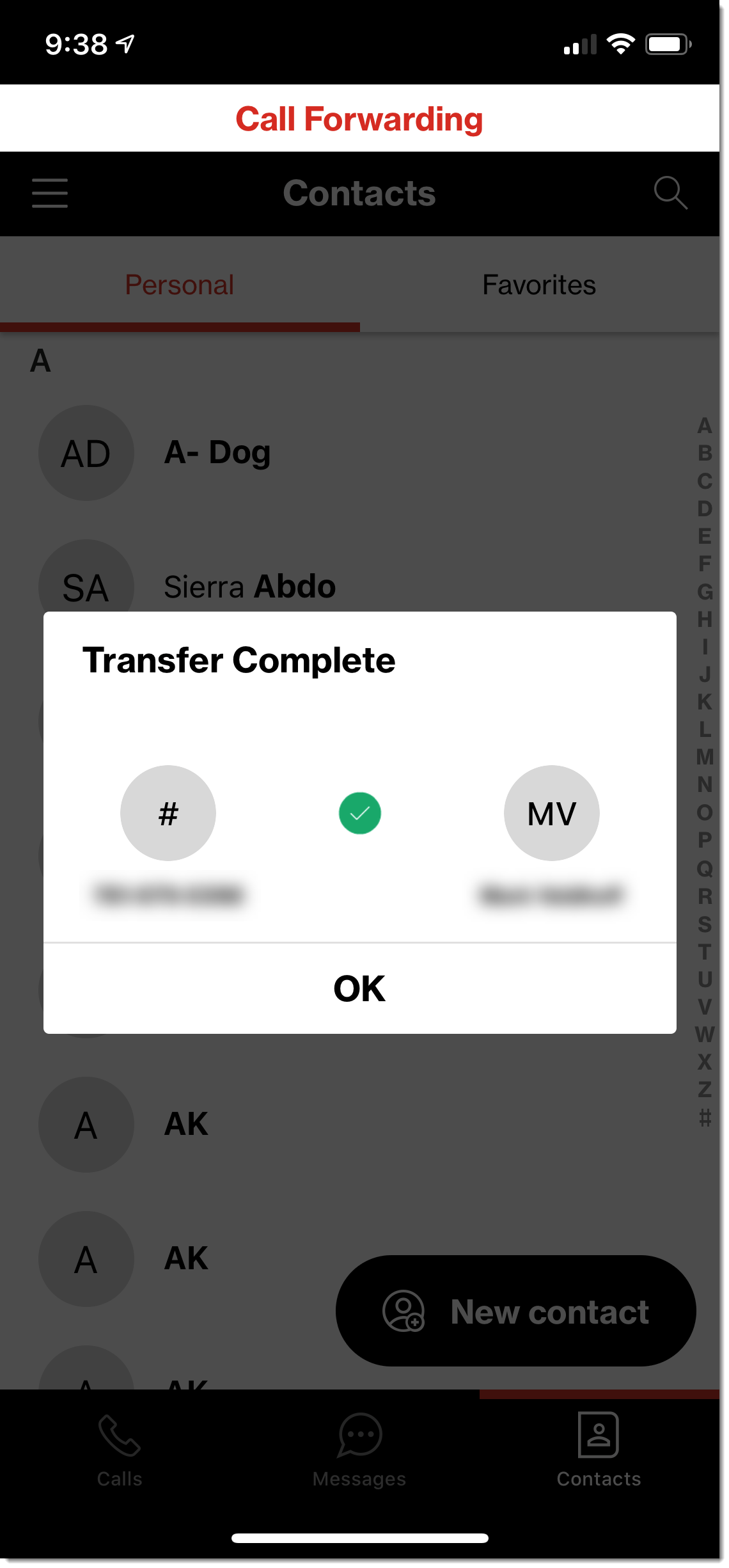
- Once the transfer is complete you will see a confirmation box
Steps for Setting up a Forwarding Number
- Select the Menu Button in the top right hand corner
- Select the Settings Gear Icon
- NOTE: If a forwarder is already set up you will see it in the Menu above the settings icon
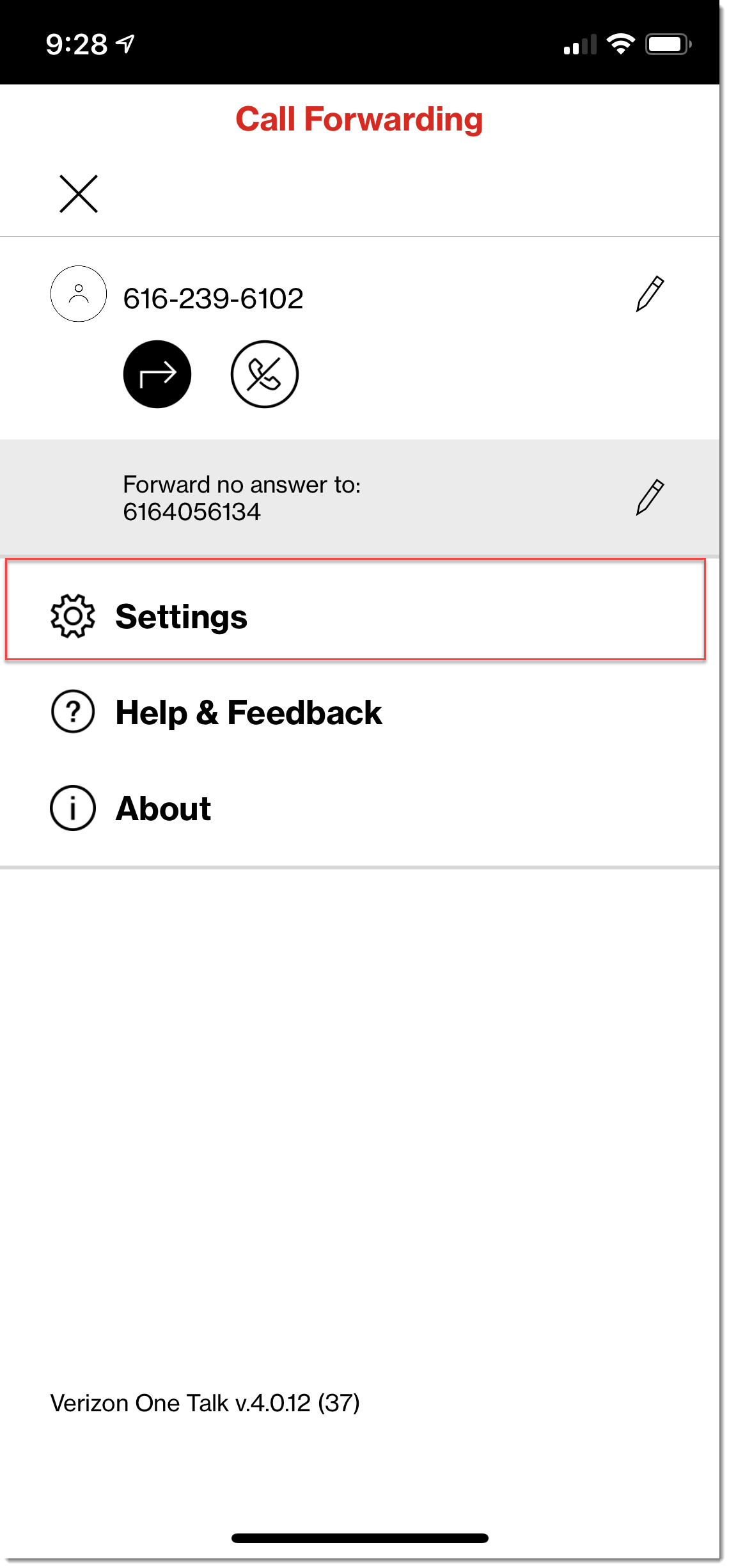
- NOTE: If a forwarder is already set up you will see it in the Menu above the settings icon
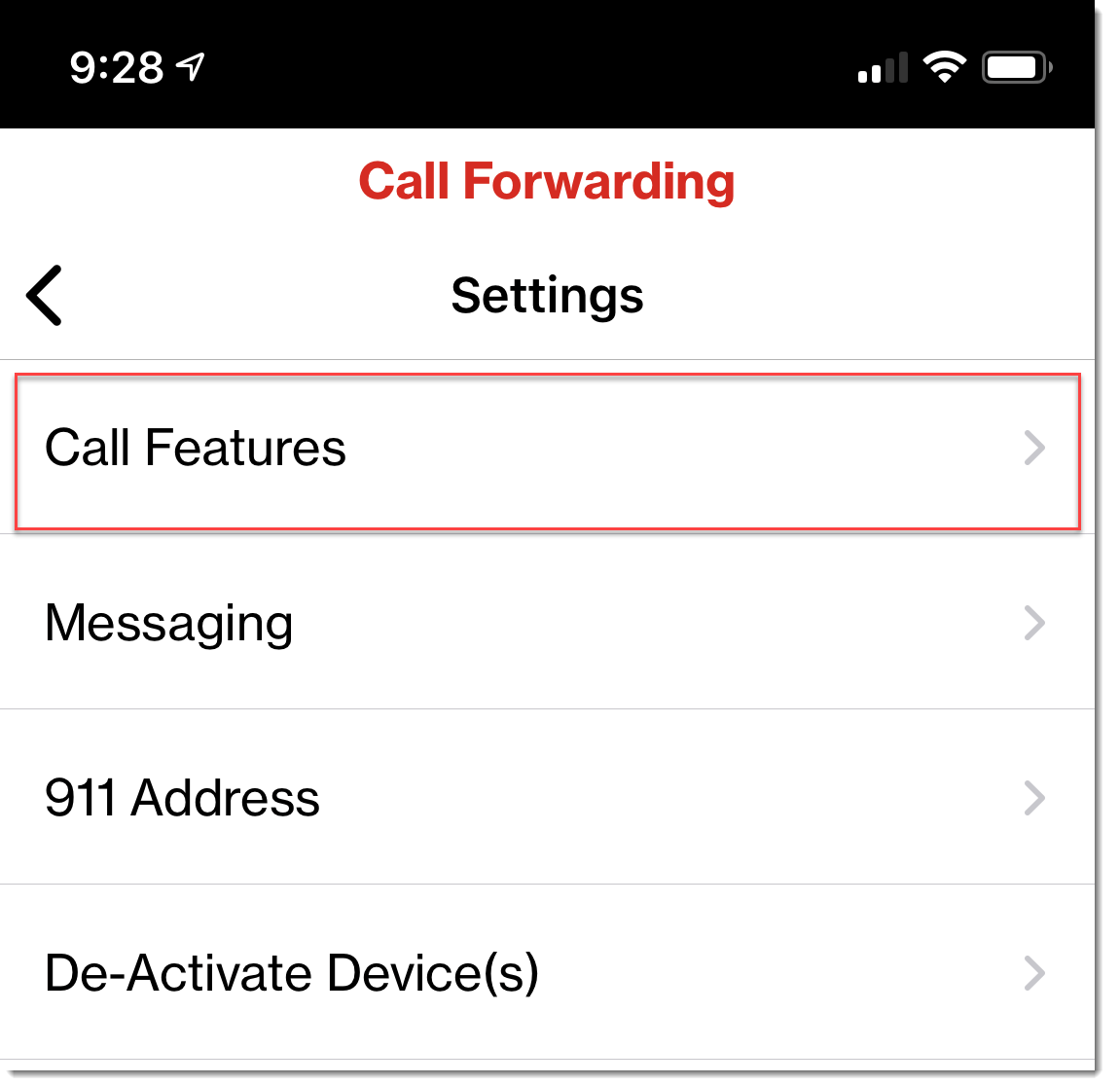
- Select Call Features
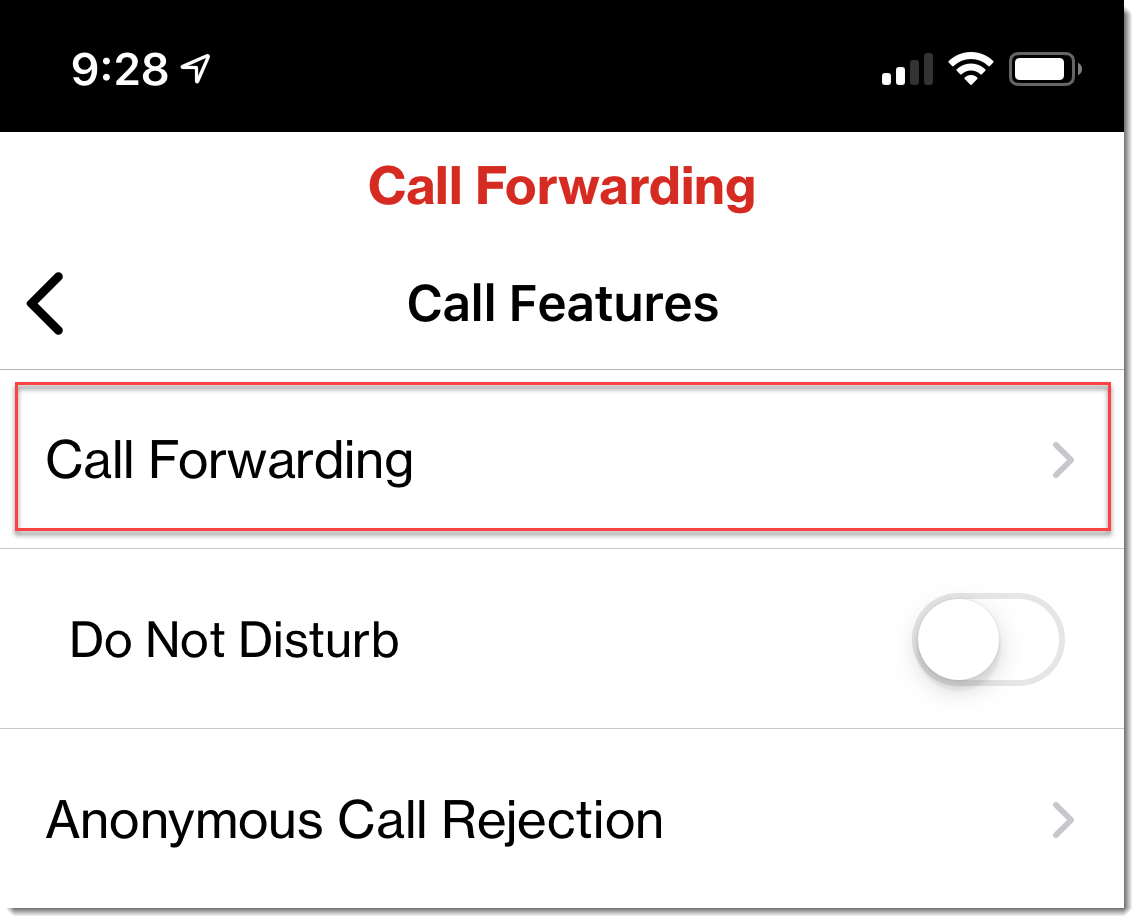
- Select Call Forwarding
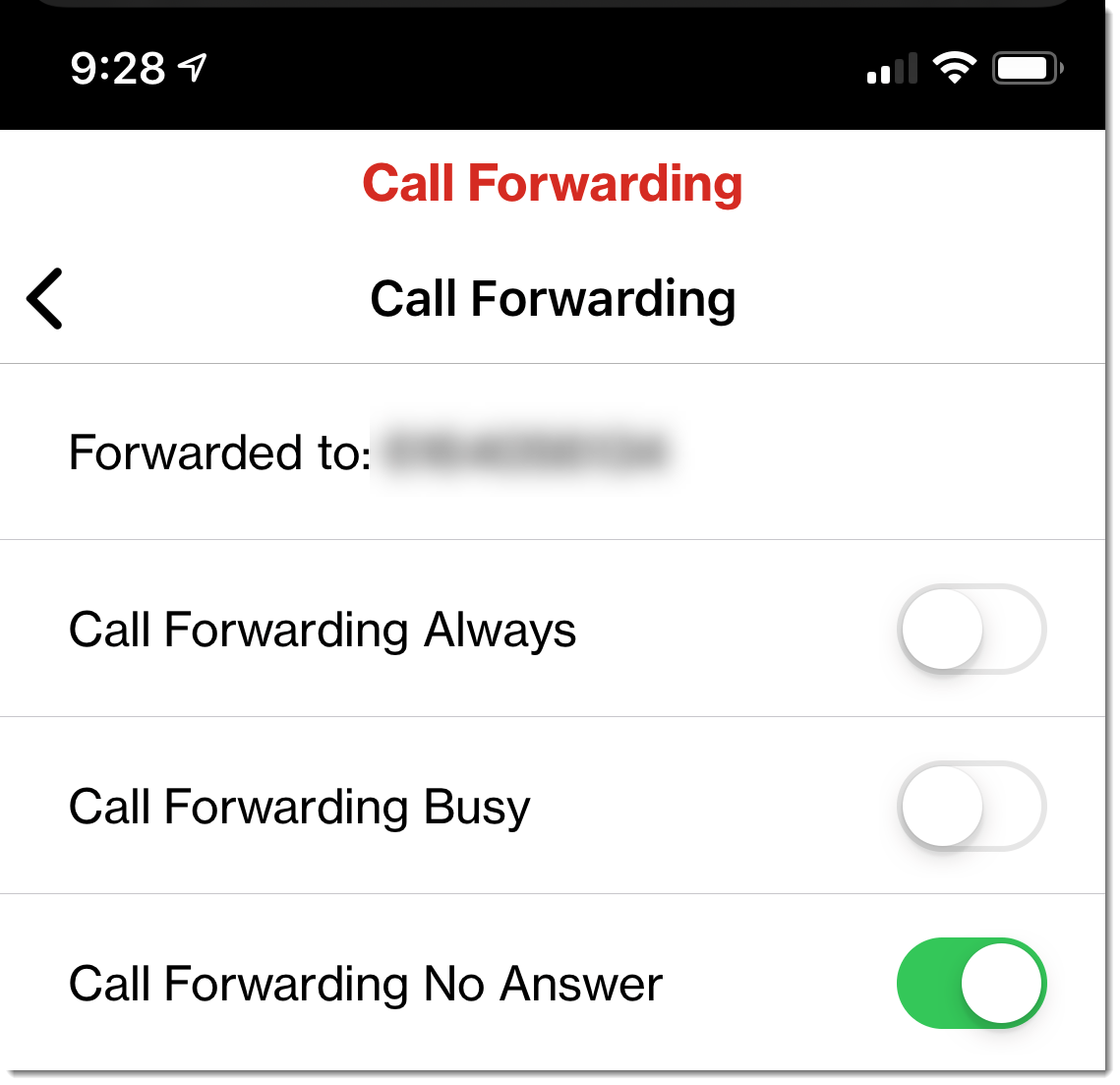
- Toggle the forwarding action that best applies and enter the number you would like it to forward
Comments
0 comments
Please sign in to leave a comment.