
Introduction
How to Create an Automated Daily Email Flow
Applies To
Office 365
Microsoft Power Automate
Resources
Procedure
- Log into your online Outlook Portal
- Select Microsoft Power Automate
- On the Left Hand Pane Select Create
- Select Scheduled Flow
- Name the Flow and specify a time and frequency
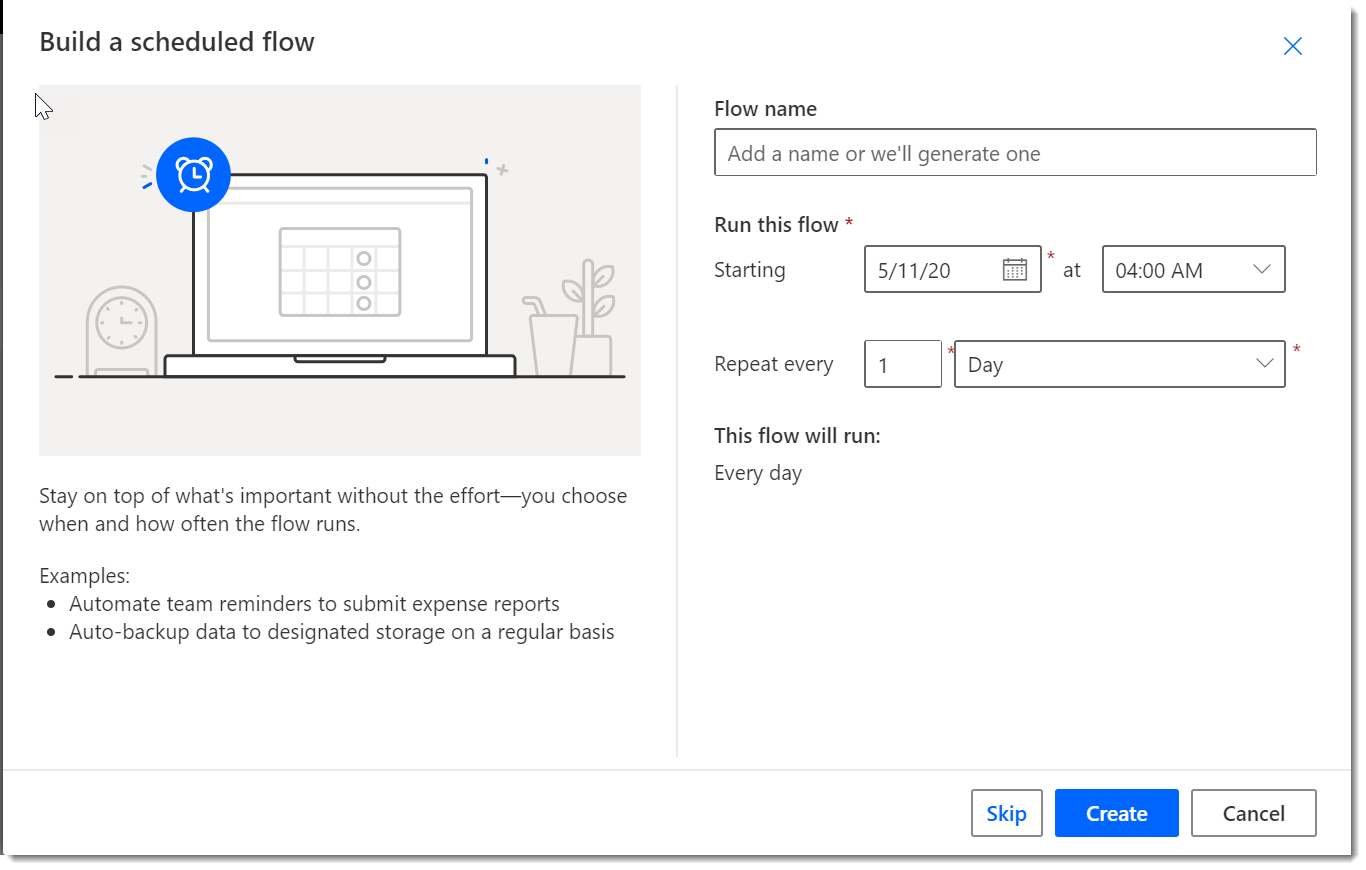
- Select Create
- Select New Step
- Search "Mail" or Select the Mail Icon if you want it to be sent from your email address
- For Shared Mailboxes Search "Shared" and select "Send an email from a shared mailbox V2
- *NOTE* in order for this to work the logged in account needs to have Full access to the Shared Mailbox selected

- *NOTE* in order for this to work the logged in account needs to have Full access to the Shared Mailbox selected
- For Shared Mailboxes Search "Shared" and select "Send an email from a shared mailbox V2
- Select Send an email notification
- Accept the Terms and Conditions
- Select the Send an Email action
- Construct the email with the Recipients and the Subject as well as the Body.
Comments
0 comments
Please sign in to leave a comment.