
Introduction
This article will walk through enabling virtualization technology in the Lenovo ThinkPad BIOS. Virtualization allows virtual machines to be run on the computer
Resources
- A computer restart will be required
Procedure
- Restart the computer
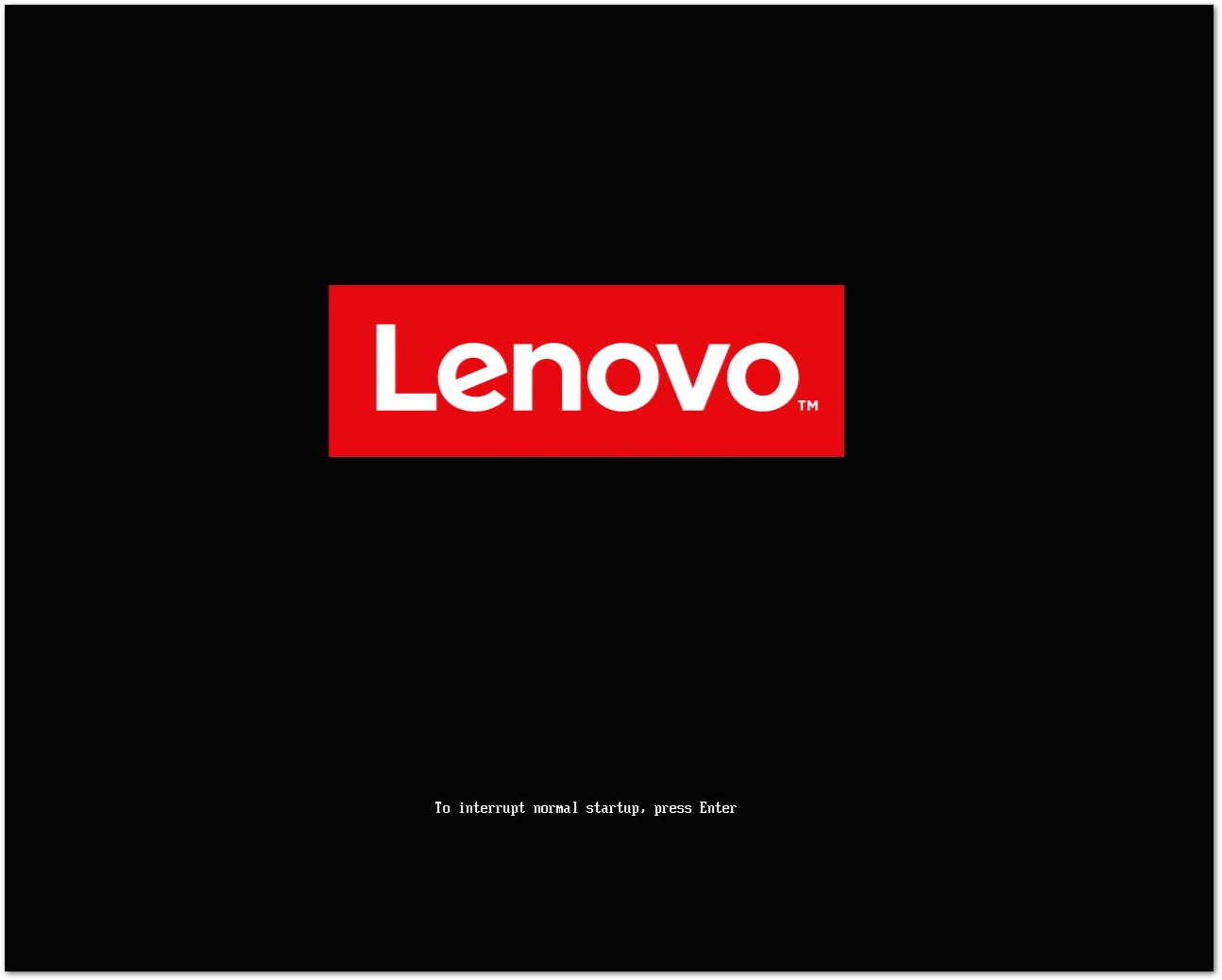
- Before the computer boots into Windows, the Lenovo logo will show on the screen. Press the Enter key several times to interrupt normal startup
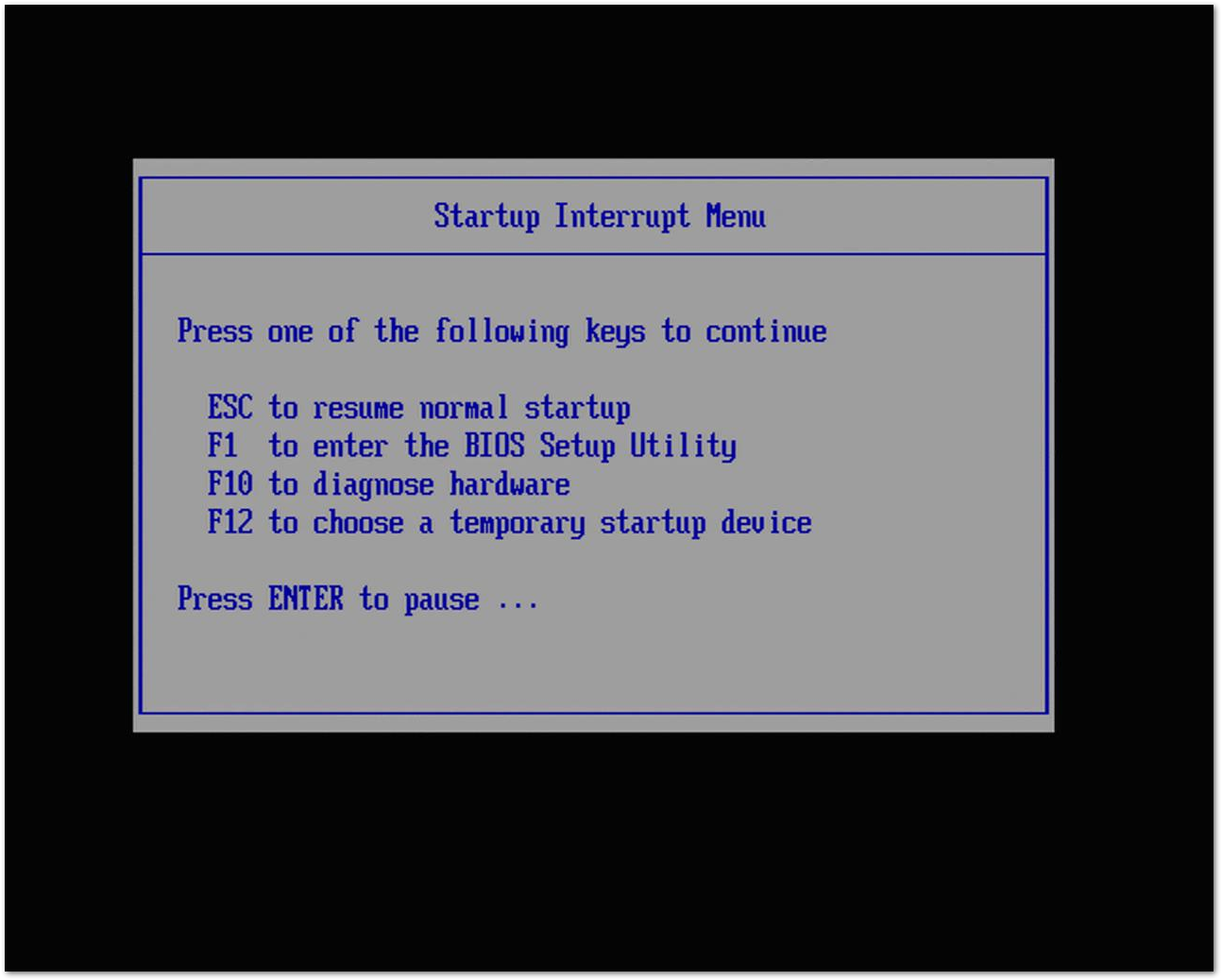
- Once the Startup Interrupt Menu appears, press the F1 key to enter Setup
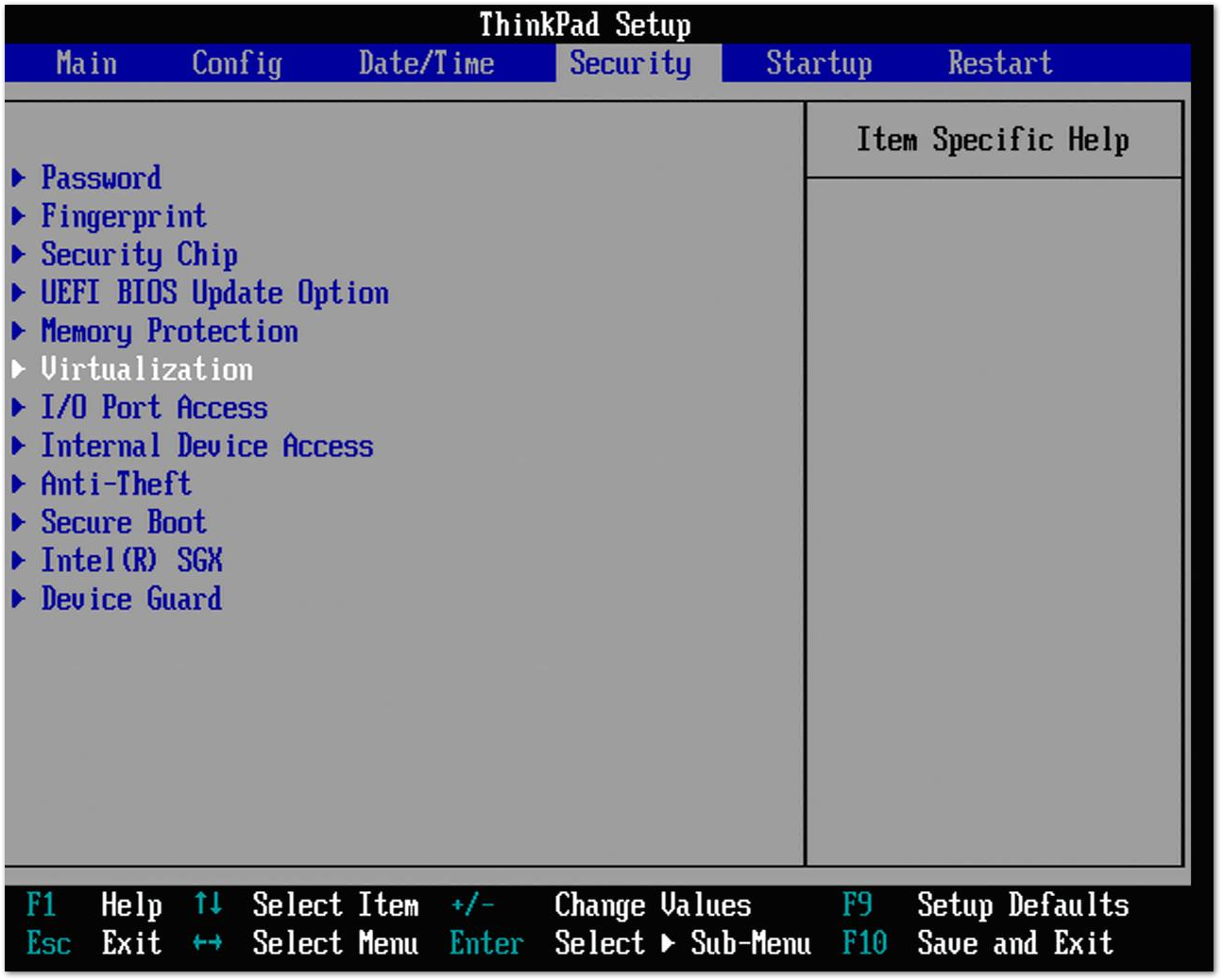
- Use the arrow keys to select Security then Virtualization and press the Enter key
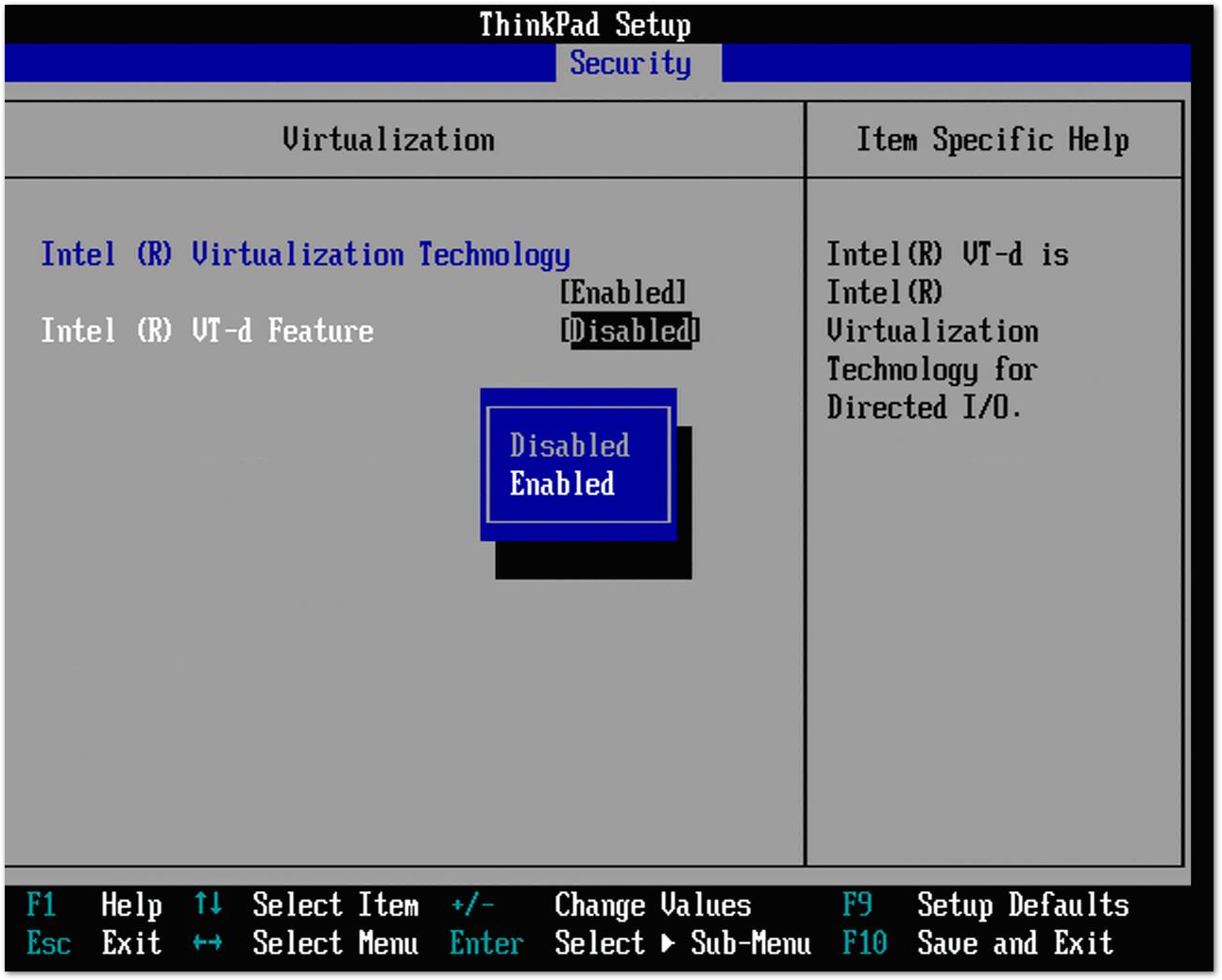
- Press the Enter key to change the current setting, then select Enabled for both settings
- Press the Esc key to back out of the Security menu, then select Restart and Exit Saving Changes
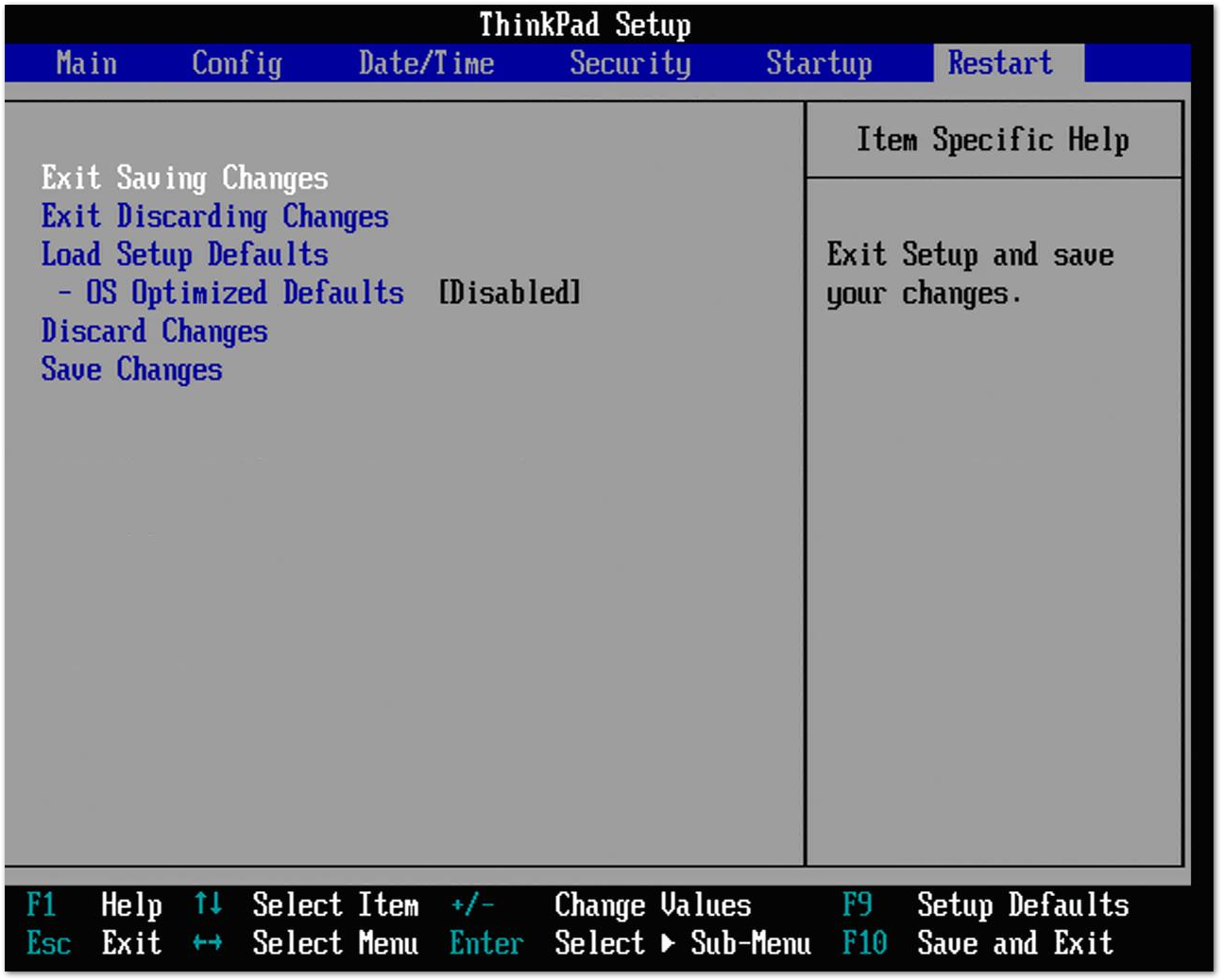
- The computer will now restart normally with virtualization enabled
Comments
0 comments
Please sign in to leave a comment.